> ## Documentation Index
> Fetch the complete documentation index at: https://docs.vaanivoice.ai/llms.txt
> Use this file to discover all available pages before exploring further.
# Deploy Your Agent
> Launch your voice agent across phone numbers, embeddable web widgets, and programmable REST APIs
The **Deploy** tab provides all the connectivity channels needed to bring your voice agent to production. Whether you want to attach a phone number for inbound callers, embed a WebRTC audio widget onto your website, or trigger outbound campaigns via REST APIs, you can manage it here.
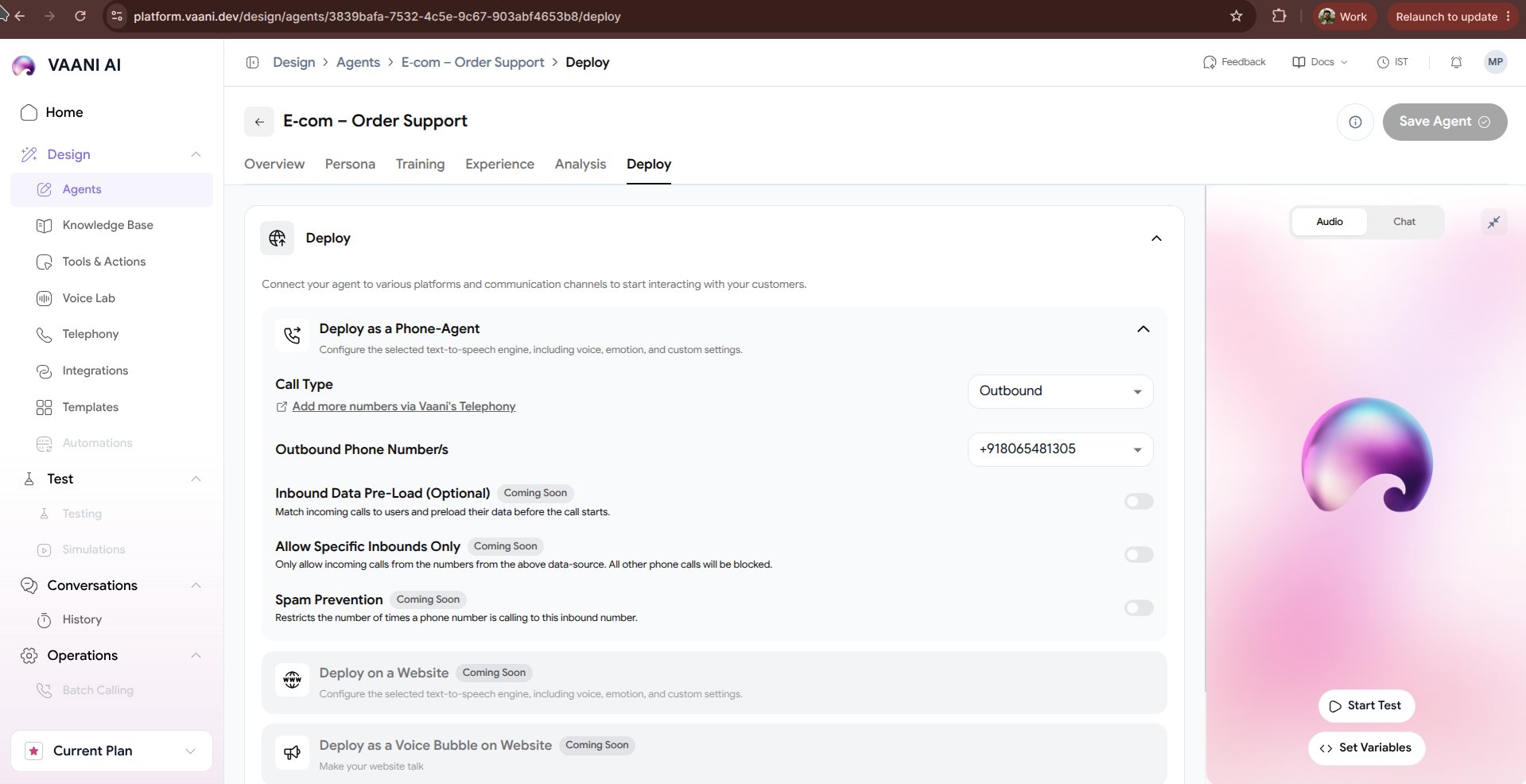 ## Video Walkthrough
***
## 4 Ways to Deploy Your Voice Agent
Assign virtual phone numbers (Twilio, Plivo, Exotel, or BYOT SIP trunks) for inbound and outbound calling.
Add an interactive WebRTC voice button to your website or React/Next.js web application with a 1-line script.
Trigger outbound calls dynamically from your backend server or workflow engine using your `agent_id`.
Upload contact CSVs to run automated high-volume outbound dialing campaigns with concurrency control.
***
## 1. Connecting Telephony Phone Numbers
To receive incoming phone calls or establish caller ID on outbound dials:
1. Go to **Deploy → Telephony**.
2. Click **Assign Number**.
3. Select an existing purchased number or link your own SIP trunk / carrier account (Twilio / Plivo / Exotel).
4. Select routing mode:
* **Inbound Handling**: All calls to this number route to this agent immediately.
* **Outbound Caller ID**: Use this number as the caller ID displayed on prospect phones.
***
## 2. Embedding the Web Voice Widget
Allow visitors on your website to talk directly to your AI agent without picking up a telephone:
```html theme={null}
```
When visitors click the floating microphone button, browser WebRTC opens an encrypted, sub-200ms audio stream directly with your agent.
***
## 3. Triggering Outbound Calls via API
To trigger a live phone call to any destination number programmatically:
```bash theme={null}
curl -X POST https://api.vaanivoice.ai/api/trigger-call \
-H "X-API-Key: YOUR_API_KEY" \
-H "Content-Type: application/json" \
-d '{
"agent_id": "8cf3373e-eb6f-4b4c-9f3c-324a56a91147",
"phone_number": "+919876543210",
"metadata": {
"customer_name": "Priya Sharma",
"project_type": "3BHK Villa"
}
}'
```
***
## 4. Configuring Webhook Endpoints
Stay updated on every call lifecycle event by specifying your webhook URL in the deployment tab:
```json theme={null}
{
"webhook_url": "https://api.yourstudio.com/webhooks/vaani",
"events": [
"call.started",
"call.connected",
"call.ended",
"call.analyzed"
]
}
```
***
## Next Steps
Make your first real outbound phone call in under 5 minutes
Explore the full REST API documentation for programmatic management
This documentation is built and hosted on [Mintlify](https://mintlify.com), a developer documentation platform.