> ## Documentation Index
> Fetch the complete documentation index at: https://docs.vaanivoice.ai/llms.txt
> Use this file to discover all available pages before exploring further.
# Create an Agent
> Configure a voice agent with a prompt, voice, and metadata variables, then copy your agent_id
An agent is your configured voice AI — it has a personality (defined by its prompt), a voice, and optional dynamic variables that get filled in at call time. In this step, you'll create one in the dashboard and get the `agent_id` you'll need for every API call.
**Before you start:** You need a Vaani account. If you haven't signed up yet, head to [Create an Account](/getting-started/create-account) first.
## What is an Agent?
Think of an agent as a recipe for how your AI handles phone calls:
* **Prompt** — the instructions that define what the agent says and how it behaves
* **Language & Voice** — which language it speaks and what it sounds like
* **Metadata Variables** — dynamic placeholders in the prompt (like `{customer_name}`) that get filled in with real data at call time
You can create multiple agents for different use cases — one for sales follow-ups, another for appointment reminders, another for customer surveys. Each agent can handle many calls simultaneously.
## Create Your Agent
In the dashboard sidebar, click **Agent Config**, then click **Create Agent**.
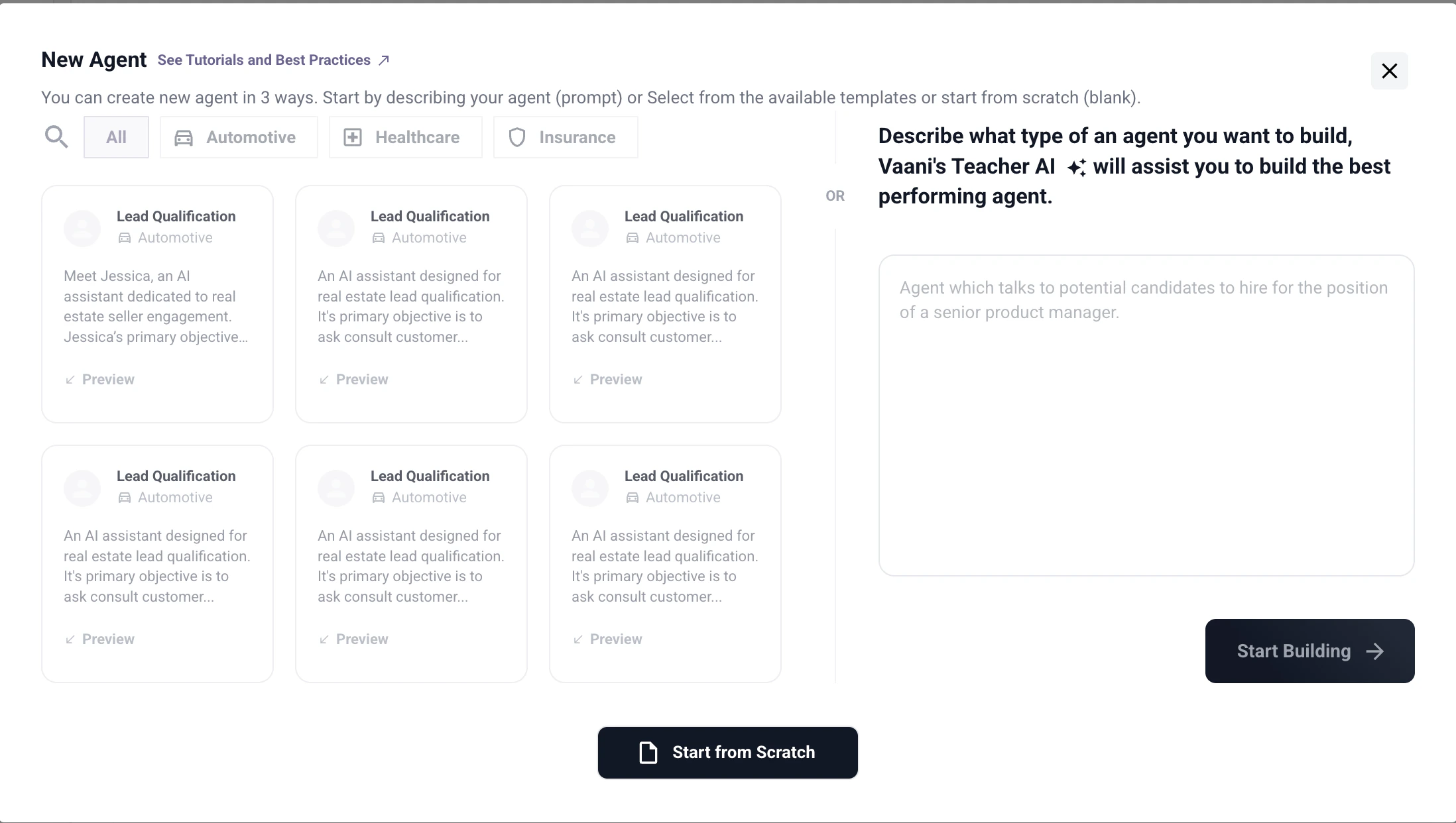 Give your agent an internal name. This is for your reference only — callers never hear it. Use something descriptive like `sales-followup-v1` or `appointment-reminder` rather than generic names like `test agent`.
The prompt is the most important part of your agent. It defines the agent's personality, goals, and how it handles different situations. See [Writing a Good Prompt](#writing-a-good-prompt) below for guidance.
Select the language your agent will speak. This affects both speech recognition (how well it understands callers) and text-to-speech (how it sounds). Then pick a voice from the available options for that language.
If your prompt uses dynamic placeholders like `{customer_name}`, define them here. You'll pass the actual values through the API when triggering each call. See [Understanding Metadata Variables](#understanding-metadata-variables) below for details.
Click **Save**. Your agent is now created. Copy the **Agent ID** — this is the UUID you'll use in every API call to identify this agent.
Give your agent an internal name. This is for your reference only — callers never hear it. Use something descriptive like `sales-followup-v1` or `appointment-reminder` rather than generic names like `test agent`.
The prompt is the most important part of your agent. It defines the agent's personality, goals, and how it handles different situations. See [Writing a Good Prompt](#writing-a-good-prompt) below for guidance.
Select the language your agent will speak. This affects both speech recognition (how well it understands callers) and text-to-speech (how it sounds). Then pick a voice from the available options for that language.
If your prompt uses dynamic placeholders like `{customer_name}`, define them here. You'll pass the actual values through the API when triggering each call. See [Understanding Metadata Variables](#understanding-metadata-variables) below for details.
Click **Save**. Your agent is now created. Copy the **Agent ID** — this is the UUID you'll use in every API call to identify this agent.
 The `agent_id` is a UUID (e.g. `8cf3373e-eb6f-4b4c-9f3c-324a56a91147`). Do not confuse it with the agent's display name. When the API asks for `agent_id`, it always means this UUID.
Not sure which identifier is which? See the [identifier reference table](/getting-started/overview#important-identifiers) for a quick comparison of `agent_id`, API key, `call_id`, and `outbound_number`.
## Writing a Good Prompt
Your prompt is the single biggest factor in how well your agent performs. Here are practical tips:
* **Start with the role and personality.** Tell the agent who it is and how it should behave. ("You are a friendly sales representative for {company_name}.")
* **Give clear instructions.** Describe what the agent should do on the call — its goal, what questions to ask, how to handle objections.
* **Use `{variable_name}` for anything that changes per call.** Names, dates, product details — anything dynamic should be a variable, not hardcoded.
* **Keep it focused.** A prompt that tries to handle every possible scenario usually handles none of them well. Start simple, test with real calls, and iterate.
Here's an example of a short but effective prompt:
```text theme={null}
You are a friendly sales representative for {company_name}.
You are calling {customer_name} to follow up on their interest in {property_name}.
Be polite, answer questions about the property, and try to schedule a site visit.
If they're not interested, thank them and end the call gracefully.
```
## Understanding Metadata Variables
Metadata variables let you personalize each call without creating separate agents. Here's how they work:
**1. Define placeholders in your prompt** using curly braces:
```text theme={null}
Hello {customer_name}, I'm calling from {company_name} about {property_name}.
```
**2. Pass the values via the API** when you trigger a call:
```json theme={null}
"metadata": {
"customer_name": "Rahul Sharma",
"company_name": "Acme Properties",
"property_name": "Prateek Laurel"
}
```
**3. Vaani replaces the placeholders** before the call starts, so your agent says:
> "Hello Rahul Sharma, I'm calling from Acme Properties about Prateek Laurel."
Variable names in your `metadata` must **exactly match** the `{placeholders}` in your prompt — including capitalization. If your prompt says `{customer_name}` but your metadata sends `"Customer_Name"`, the replacement won't work and the agent will say the placeholder literally.
Start simple. Create a basic agent with a short prompt, test it with a real call, then iterate on the prompt based on what you hear. You can edit the agent's prompt anytime without changing its `agent_id` — edits apply to all future calls immediately.
## Troubleshooting
The metadata key you're passing in the API doesn't match the placeholder in your prompt. Check that the spelling and capitalization match exactly. For example, if your prompt uses `{customer_name}`, your metadata must use `"customer_name"` — not `"customerName"` or `"Customer_Name"`.
Go to **Agent Config** in the dashboard. Your agent's ID (UUID) is displayed on the agent's detail page. Click the copy button next to it. The `agent_id` looks like `8cf3373e-eb6f-4b4c-9f3c-324a56a91147` — it's the UUID, not the display name you gave the agent.
Yes. Edits to the prompt, voice, language, or metadata variables take effect on all future calls immediately. Calls that are already in progress are not affected.
**Video walkthrough coming soon.** Follow the steps above — they cover everything the video will.
## Next Step
Connect a phone number so your agent can make and receive real calls
The `agent_id` is a UUID (e.g. `8cf3373e-eb6f-4b4c-9f3c-324a56a91147`). Do not confuse it with the agent's display name. When the API asks for `agent_id`, it always means this UUID.
Not sure which identifier is which? See the [identifier reference table](/getting-started/overview#important-identifiers) for a quick comparison of `agent_id`, API key, `call_id`, and `outbound_number`.
## Writing a Good Prompt
Your prompt is the single biggest factor in how well your agent performs. Here are practical tips:
* **Start with the role and personality.** Tell the agent who it is and how it should behave. ("You are a friendly sales representative for {company_name}.")
* **Give clear instructions.** Describe what the agent should do on the call — its goal, what questions to ask, how to handle objections.
* **Use `{variable_name}` for anything that changes per call.** Names, dates, product details — anything dynamic should be a variable, not hardcoded.
* **Keep it focused.** A prompt that tries to handle every possible scenario usually handles none of them well. Start simple, test with real calls, and iterate.
Here's an example of a short but effective prompt:
```text theme={null}
You are a friendly sales representative for {company_name}.
You are calling {customer_name} to follow up on their interest in {property_name}.
Be polite, answer questions about the property, and try to schedule a site visit.
If they're not interested, thank them and end the call gracefully.
```
## Understanding Metadata Variables
Metadata variables let you personalize each call without creating separate agents. Here's how they work:
**1. Define placeholders in your prompt** using curly braces:
```text theme={null}
Hello {customer_name}, I'm calling from {company_name} about {property_name}.
```
**2. Pass the values via the API** when you trigger a call:
```json theme={null}
"metadata": {
"customer_name": "Rahul Sharma",
"company_name": "Acme Properties",
"property_name": "Prateek Laurel"
}
```
**3. Vaani replaces the placeholders** before the call starts, so your agent says:
> "Hello Rahul Sharma, I'm calling from Acme Properties about Prateek Laurel."
Variable names in your `metadata` must **exactly match** the `{placeholders}` in your prompt — including capitalization. If your prompt says `{customer_name}` but your metadata sends `"Customer_Name"`, the replacement won't work and the agent will say the placeholder literally.
Start simple. Create a basic agent with a short prompt, test it with a real call, then iterate on the prompt based on what you hear. You can edit the agent's prompt anytime without changing its `agent_id` — edits apply to all future calls immediately.
## Troubleshooting
The metadata key you're passing in the API doesn't match the placeholder in your prompt. Check that the spelling and capitalization match exactly. For example, if your prompt uses `{customer_name}`, your metadata must use `"customer_name"` — not `"customerName"` or `"Customer_Name"`.
Go to **Agent Config** in the dashboard. Your agent's ID (UUID) is displayed on the agent's detail page. Click the copy button next to it. The `agent_id` looks like `8cf3373e-eb6f-4b4c-9f3c-324a56a91147` — it's the UUID, not the display name you gave the agent.
Yes. Edits to the prompt, voice, language, or metadata variables take effect on all future calls immediately. Calls that are already in progress are not affected.
**Video walkthrough coming soon.** Follow the steps above — they cover everything the video will.
## Next Step
Connect a phone number so your agent can make and receive real calls