> ## Documentation Index
> Fetch the complete documentation index at: https://docs.vaanivoice.ai/llms.txt
> Use this file to discover all available pages before exploring further.
# Import from JSON
> Create an agent by uploading or pasting an agent JSON configuration for GitOps and automated migrations
The **Import from JSON** method allows developers and platform teams to manage voice agents as code (GitOps). You can version-control your entire agent definition in Git, review diffs across pull requests, and deploy agent updates reproducibly across development, staging, and production environments.
 ## How to Import an Agent from JSON
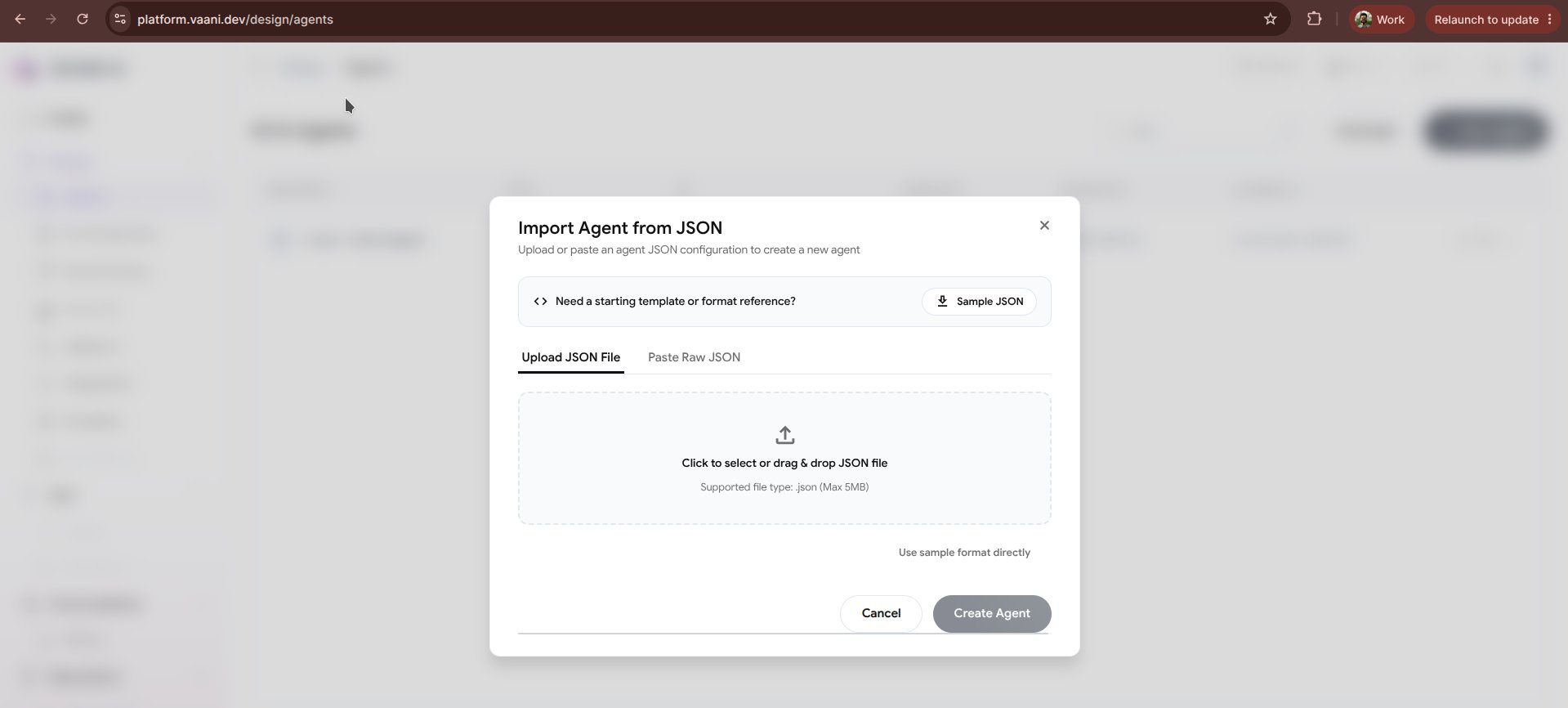
In the Vaani Dashboard, click **+ New Agent** and select **Import from JSON**.
You can either drag and drop a `.json` configuration file or paste your JSON payload directly into the built-in syntax-highlighting code editor.
Vaani automatically validates the schema in real-time, verifying required keys, provider compatibility, and variable formatting.
Click **Import Agent**. Vaani instantiates the agent, sets up the pipeline, and generates a new `agent_id`.
***
## Agent JSON Schema Specification
Below is the standard JSON specification for an agent in Vaani:
```json theme={null}
{
"name": "sales-qualifier-v1",
"description": "Outbound B2B lead qualifier for tech SaaS",
"identity": {
"gender": "female",
"language": "hi-IN",
"voice_name": "ritu",
"provider": "sarvam"
},
"pipeline": {
"stt": {
"provider": "deepgram",
"model": "nova-2",
"language": "hi",
"keywords": ["Vaani", "SaaS", "API"]
},
"llm": {
"provider": "openai",
"model": "gpt-4o",
"temperature": 0.4,
"max_tokens": 150
},
"tts": {
"provider": "sarvam",
"model": "bulbul:v3",
"voice_id": "ritu",
"speed": 1.0,
"pitch": 0.0
}
},
"greeting": {
"message": "Namaste! This is Ritu from Vaani Voice. Am I speaking with {customer_name}?",
"interruptible": true,
"user_speaks_first": false,
"speech_delay_ms": 300
},
"system_prompt": "You are a professional B2B lead qualification assistant for Vaani Voice...",
"metadata_variables": [
{
"key": "customer_name",
"type": "string",
"description": "Full name of the prospect"
},
{
"key": "company_name",
"type": "string",
"description": "Company name of the prospect"
}
],
"experience": {
"ambient_sound": "office",
"ambient_sound_volume": 0.15,
"interruption_sensitivity": 0.7,
"silence_timeout_ms": 5000,
"max_duration_seconds": 600
},
"tools": [
{
"name": "book_calendar_slot",
"description": "Book a meeting on Google Calendar or Cal.com",
"endpoint": "https://api.yourdomain.com/v1/book",
"method": "POST"
}
]
}
```
***
## Exporting Existing Agents to JSON
You can also export any existing agent back to JSON at any time:
1. Open your agent in the [Vaani Dashboard](https://platform.vaani.dev).
2. Go to the **Overview** tab.
3. Click the three dots menu `...` in the upper right corner and select **Export JSON**.
4. Save the file directly to your code repository.
***
## Next Steps
Create and update agents programmatically using the REST API
Explore the 6 core configuration pillars of your imported agent
This documentation is built and hosted on [Mintlify](https://mintlify.com), a developer documentation platform.
## How to Import an Agent from JSON
In the Vaani Dashboard, click **+ New Agent** and select **Import from JSON**.
You can either drag and drop a `.json` configuration file or paste your JSON payload directly into the built-in syntax-highlighting code editor.
Vaani automatically validates the schema in real-time, verifying required keys, provider compatibility, and variable formatting.
Click **Import Agent**. Vaani instantiates the agent, sets up the pipeline, and generates a new `agent_id`.
***
## Agent JSON Schema Specification
Below is the standard JSON specification for an agent in Vaani:
```json theme={null}
{
"name": "sales-qualifier-v1",
"description": "Outbound B2B lead qualifier for tech SaaS",
"identity": {
"gender": "female",
"language": "hi-IN",
"voice_name": "ritu",
"provider": "sarvam"
},
"pipeline": {
"stt": {
"provider": "deepgram",
"model": "nova-2",
"language": "hi",
"keywords": ["Vaani", "SaaS", "API"]
},
"llm": {
"provider": "openai",
"model": "gpt-4o",
"temperature": 0.4,
"max_tokens": 150
},
"tts": {
"provider": "sarvam",
"model": "bulbul:v3",
"voice_id": "ritu",
"speed": 1.0,
"pitch": 0.0
}
},
"greeting": {
"message": "Namaste! This is Ritu from Vaani Voice. Am I speaking with {customer_name}?",
"interruptible": true,
"user_speaks_first": false,
"speech_delay_ms": 300
},
"system_prompt": "You are a professional B2B lead qualification assistant for Vaani Voice...",
"metadata_variables": [
{
"key": "customer_name",
"type": "string",
"description": "Full name of the prospect"
},
{
"key": "company_name",
"type": "string",
"description": "Company name of the prospect"
}
],
"experience": {
"ambient_sound": "office",
"ambient_sound_volume": 0.15,
"interruption_sensitivity": 0.7,
"silence_timeout_ms": 5000,
"max_duration_seconds": 600
},
"tools": [
{
"name": "book_calendar_slot",
"description": "Book a meeting on Google Calendar or Cal.com",
"endpoint": "https://api.yourdomain.com/v1/book",
"method": "POST"
}
]
}
```
***
## Exporting Existing Agents to JSON
You can also export any existing agent back to JSON at any time:
1. Open your agent in the [Vaani Dashboard](https://platform.vaani.dev).
2. Go to the **Overview** tab.
3. Click the three dots menu `...` in the upper right corner and select **Export JSON**.
4. Save the file directly to your code repository.
***
## Next Steps
Create and update agents programmatically using the REST API
Explore the 6 core configuration pillars of your imported agent
This documentation is built and hosted on [Mintlify](https://mintlify.com), a developer documentation platform.