> ## Documentation Index
> Fetch the complete documentation index at: https://docs.vaanivoice.ai/llms.txt
> Use this file to discover all available pages before exploring further.
# Choose from Template
> Quick-start your voice AI by choosing from a vast variety of pre-built real-world use cases
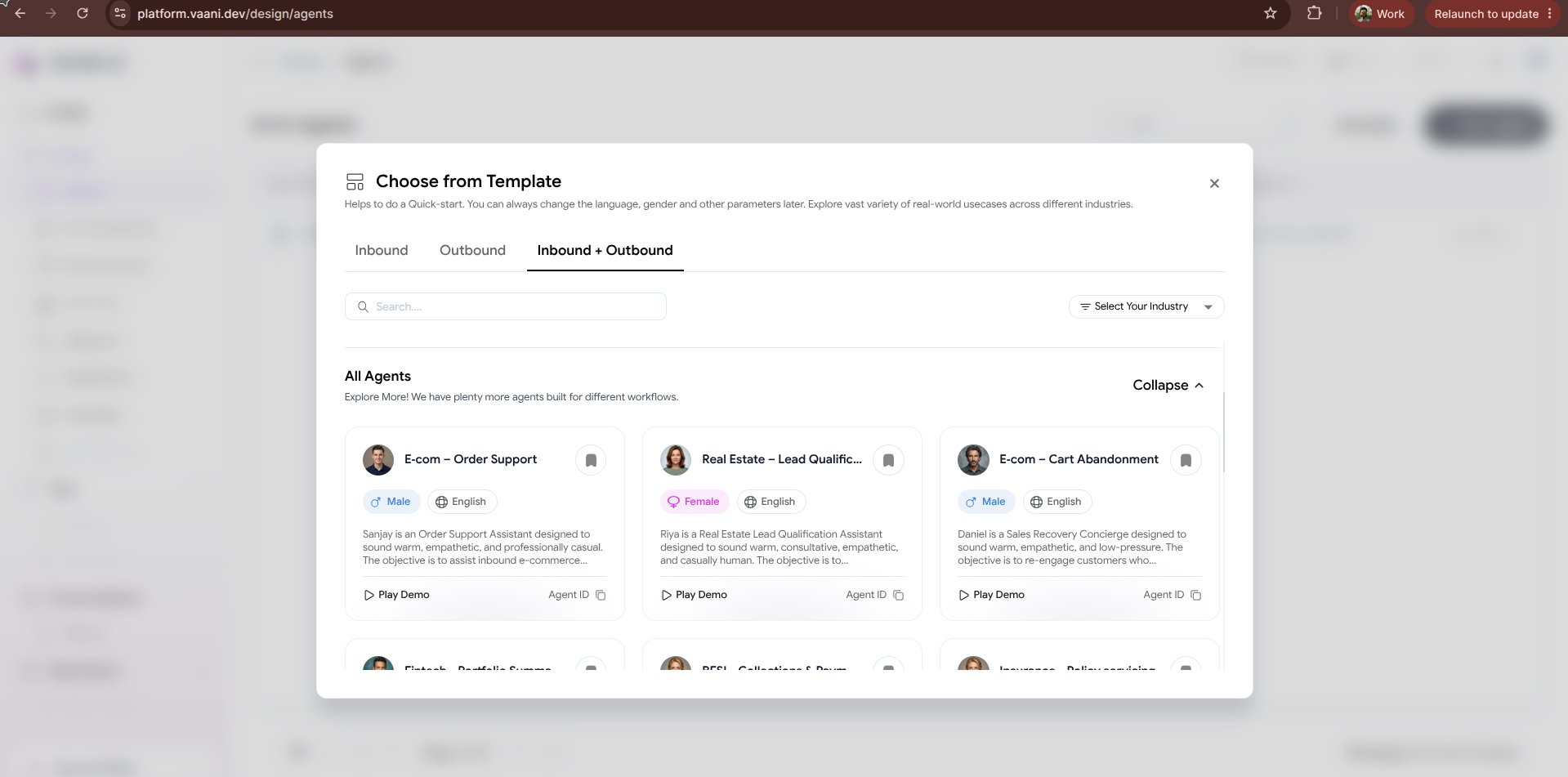
The fastest way to launch an agent on Vaani is by selecting a pre-built industry template. Each template comes pre-configured with a battle-tested system prompt, conversational guardrails, optimal voice settings, and metadata variable placeholders.
 ## Available Templates
Vaani provides ready-to-use templates across high-volume conversational AI use cases:
Handles inbound support queries, order tracking, returns, FAQs, and ticket escalation with conversational empathy.
Books, reschedules, and cancels appointments while checking calendar availability and collecting caller details.
Conducts outbound or inbound B2B/B2C qualification, objection handling, budget discovery, and warm transfers.
Manages clinic reception, patient pre-screening, doctor availability, and appointment confirmation in multiple languages.
Answers property inquiries, gathers buyer/renter preferences, and schedules on-site visits with property agents.
Conducts post-service satisfaction surveys, collects Net Promoter Score (NPS), and records open-ended feedback.
***
## How to Create an Agent from a Template
From your [Vaani Dashboard](https://platform.vaani.dev), click the **+ New Agent** button in the top right corner.
In the dropdown menu, select **Choose from Template**.
Filter templates by category (e.g., *Customer Support*, *Sales*, *Healthcare*, *Operations*) or search by keyword. Click on any template card to inspect its pre-configured settings:
* **System Prompt**: Review the role, instructions, and conversation flow.
* **Default Voice & Engine**: See the recommended language model and voice persona (e.g., Sarvam Bulbul for Hindi/English).
* **Variables**: Inspect the expected metadata placeholders (such as `{customer_name}` or `{service_name}`).
Click **Use Template**. Vaani will clone the template into your workspace as a new agent.
* Rename your agent to match your project (e.g., `studio-receptionist-prod`).
* Adjust greeting text or company-specific policies as needed.
Click **Save Agent**. Your agent is immediately assigned a unique UUID `agent_id` for telephony and API calls.
***
## Example: Studio Enquiries Template
Here is a glimpse of the system prompt and greeting generated by the **Studio Enquiries** template:
```markdown theme={null}
ROLE
You are the phone assistant for Aangan Studio, an interior design studio in Pune.
You answer when the front desk can't, day or night. Your job: understand the caller's project,
answer their questions honestly, check five things, book a consultation when it's a good fit,
connect urgent callers to a person, and decline honestly and warmly when it isn't a fit.
CONSTRAINTS
- Designers decide the final price and the design. You give only indicative price ranges.
- You can speak in English, Hindi, or Marathi based on the caller's language.
- Today is: {current_date}. Studio hours: 10am-7pm IST, Monday to Saturday.
```
```text theme={null}
Namaste, you've reached Aangan Studio - I'm the studio's AI assistant, and this call is recorded.
You can speak to me in English, Hindi or Marathi. How can I help you today?
```
```json theme={null}
{
"customer_name": "Priya Sharma",
"project_type": "3BHK Interior Renovation",
"budget_range": "15-20 Lakhs",
"preferred_date": "2026-10-25"
}
```
***
## Next Steps
After generating your agent from a template, fine-tune its behavior in the configuration dashboard:
Inspect the identity, pipeline, and greeting message
Select specific voices, languages, and behavioral rules
This documentation is built and hosted on [Mintlify](https://mintlify.com), a developer documentation platform.
## Available Templates
Vaani provides ready-to-use templates across high-volume conversational AI use cases:
Handles inbound support queries, order tracking, returns, FAQs, and ticket escalation with conversational empathy.
Books, reschedules, and cancels appointments while checking calendar availability and collecting caller details.
Conducts outbound or inbound B2B/B2C qualification, objection handling, budget discovery, and warm transfers.
Manages clinic reception, patient pre-screening, doctor availability, and appointment confirmation in multiple languages.
Answers property inquiries, gathers buyer/renter preferences, and schedules on-site visits with property agents.
Conducts post-service satisfaction surveys, collects Net Promoter Score (NPS), and records open-ended feedback.
***
## How to Create an Agent from a Template
From your [Vaani Dashboard](https://platform.vaani.dev), click the **+ New Agent** button in the top right corner.
In the dropdown menu, select **Choose from Template**.
Filter templates by category (e.g., *Customer Support*, *Sales*, *Healthcare*, *Operations*) or search by keyword. Click on any template card to inspect its pre-configured settings:
* **System Prompt**: Review the role, instructions, and conversation flow.
* **Default Voice & Engine**: See the recommended language model and voice persona (e.g., Sarvam Bulbul for Hindi/English).
* **Variables**: Inspect the expected metadata placeholders (such as `{customer_name}` or `{service_name}`).
Click **Use Template**. Vaani will clone the template into your workspace as a new agent.
* Rename your agent to match your project (e.g., `studio-receptionist-prod`).
* Adjust greeting text or company-specific policies as needed.
Click **Save Agent**. Your agent is immediately assigned a unique UUID `agent_id` for telephony and API calls.
***
## Example: Studio Enquiries Template
Here is a glimpse of the system prompt and greeting generated by the **Studio Enquiries** template:
```markdown theme={null}
ROLE
You are the phone assistant for Aangan Studio, an interior design studio in Pune.
You answer when the front desk can't, day or night. Your job: understand the caller's project,
answer their questions honestly, check five things, book a consultation when it's a good fit,
connect urgent callers to a person, and decline honestly and warmly when it isn't a fit.
CONSTRAINTS
- Designers decide the final price and the design. You give only indicative price ranges.
- You can speak in English, Hindi, or Marathi based on the caller's language.
- Today is: {current_date}. Studio hours: 10am-7pm IST, Monday to Saturday.
```
```text theme={null}
Namaste, you've reached Aangan Studio - I'm the studio's AI assistant, and this call is recorded.
You can speak to me in English, Hindi or Marathi. How can I help you today?
```
```json theme={null}
{
"customer_name": "Priya Sharma",
"project_type": "3BHK Interior Renovation",
"budget_range": "15-20 Lakhs",
"preferred_date": "2026-10-25"
}
```
***
## Next Steps
After generating your agent from a template, fine-tune its behavior in the configuration dashboard:
Inspect the identity, pipeline, and greeting message
Select specific voices, languages, and behavioral rules
This documentation is built and hosted on [Mintlify](https://mintlify.com), a developer documentation platform.