> ## Documentation Index
> Fetch the complete documentation index at: https://docs.vaanivoice.ai/llms.txt
> Use this file to discover all available pages before exploring further.
# Integrations
> Connect Vaani with WhatsApp and Cal.com
## WhatsApp
Connect your Vaani agents to WhatsApp to handle conversations over messaging in addition to voice.
Navigate to **Settings → Integrations → WhatsApp**.
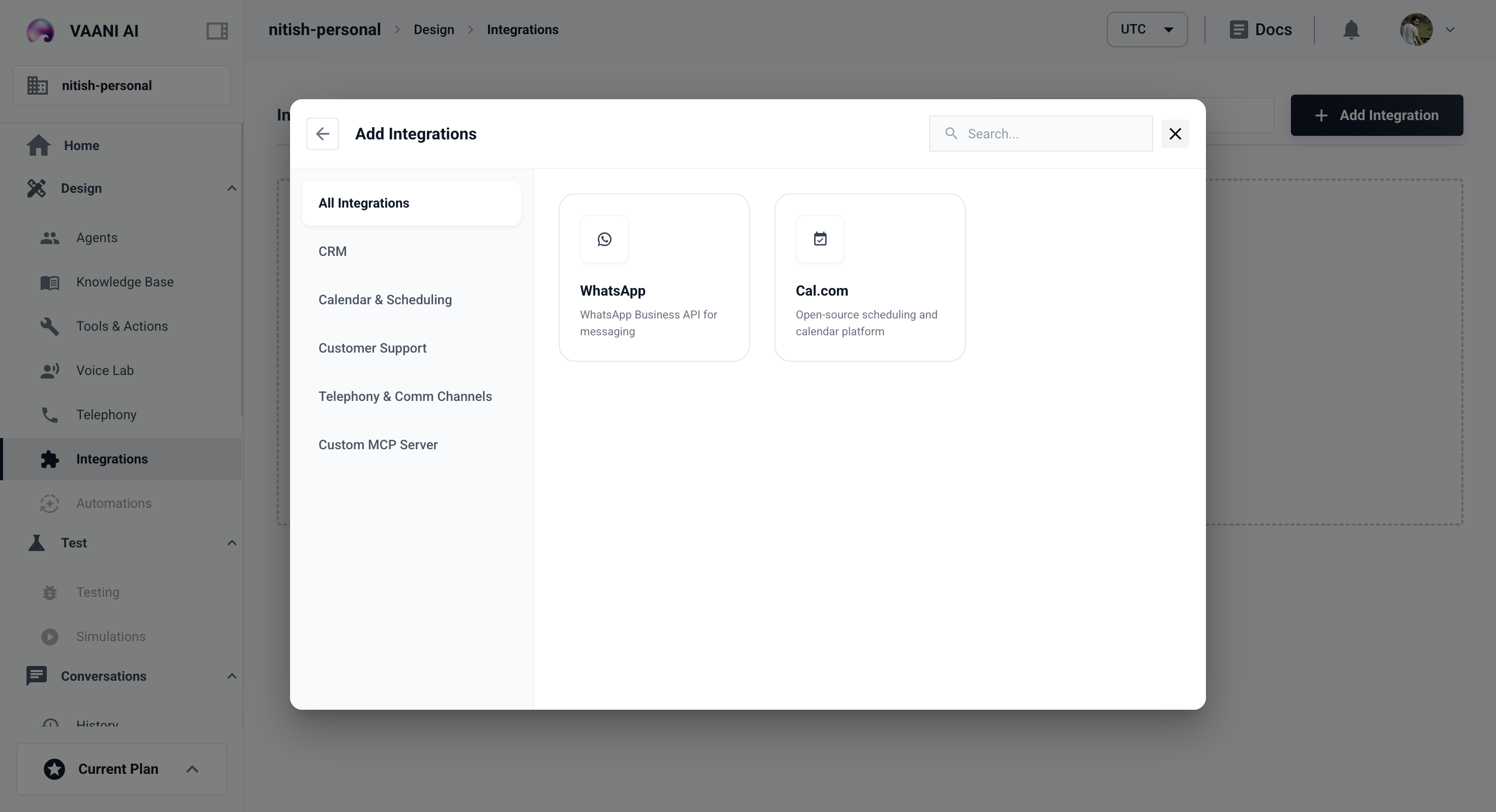 Follow the OAuth flow to link your WhatsApp Business account.
Select which agent handles incoming WhatsApp messages.
***
## Cal.com
Integrate with Cal.com to allow your voice agents to book meetings directly during calls.
Navigate to **Settings → Integrations → Cal.com**.
Follow the OAuth flow to link your WhatsApp Business account.
Select which agent handles incoming WhatsApp messages.
***
## Cal.com
Integrate with Cal.com to allow your voice agents to book meetings directly during calls.
Navigate to **Settings → Integrations → Cal.com**.
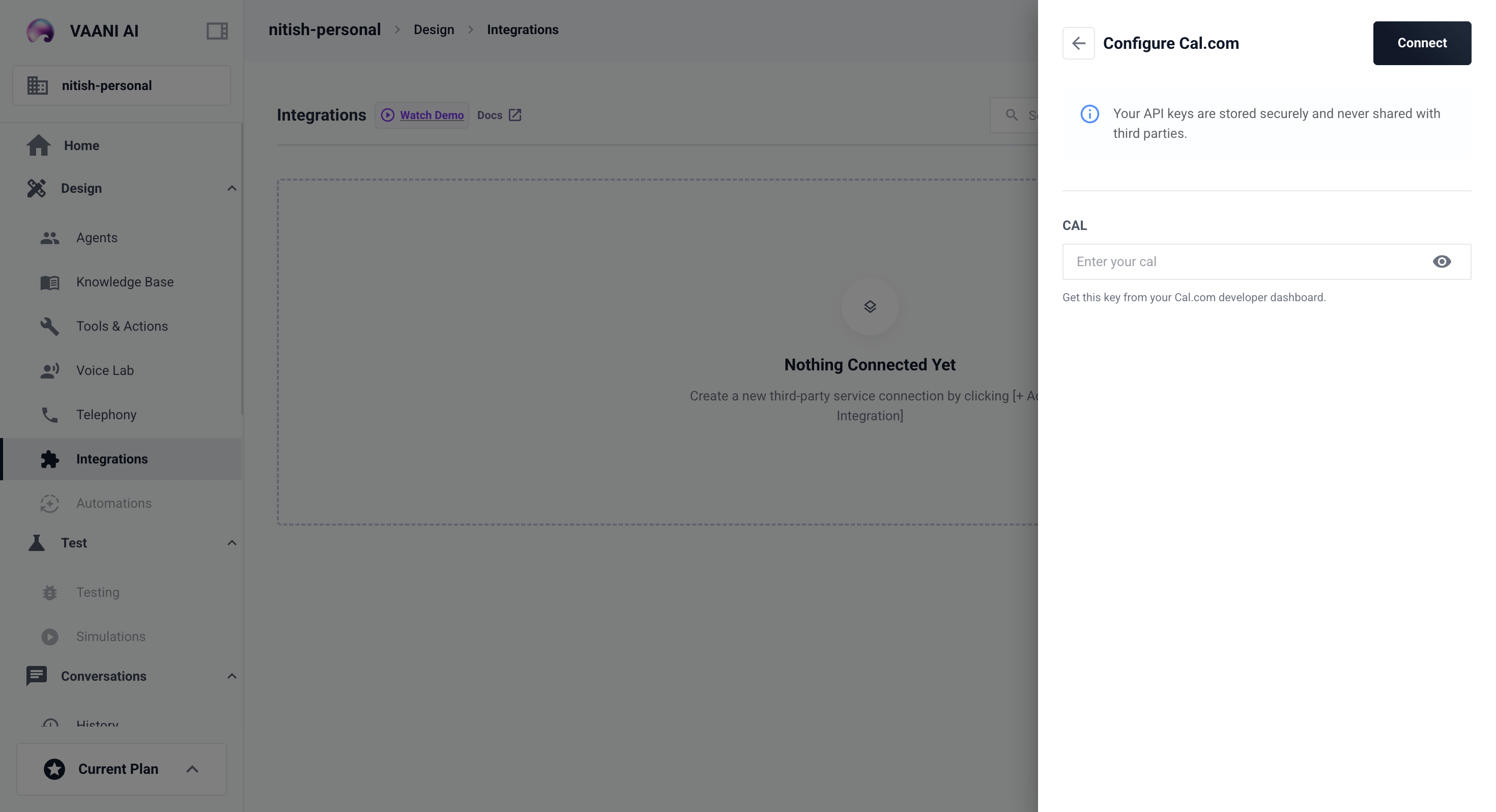 Paste your Cal.com API key to authorize the integration.
Set which calendar event type to use when the agent books a meeting.
Paste your Cal.com API key to authorize the integration.
Set which calendar event type to use when the agent books a meeting.